
Setting Up the Integration
-
Log in to your DocuSign account.
-
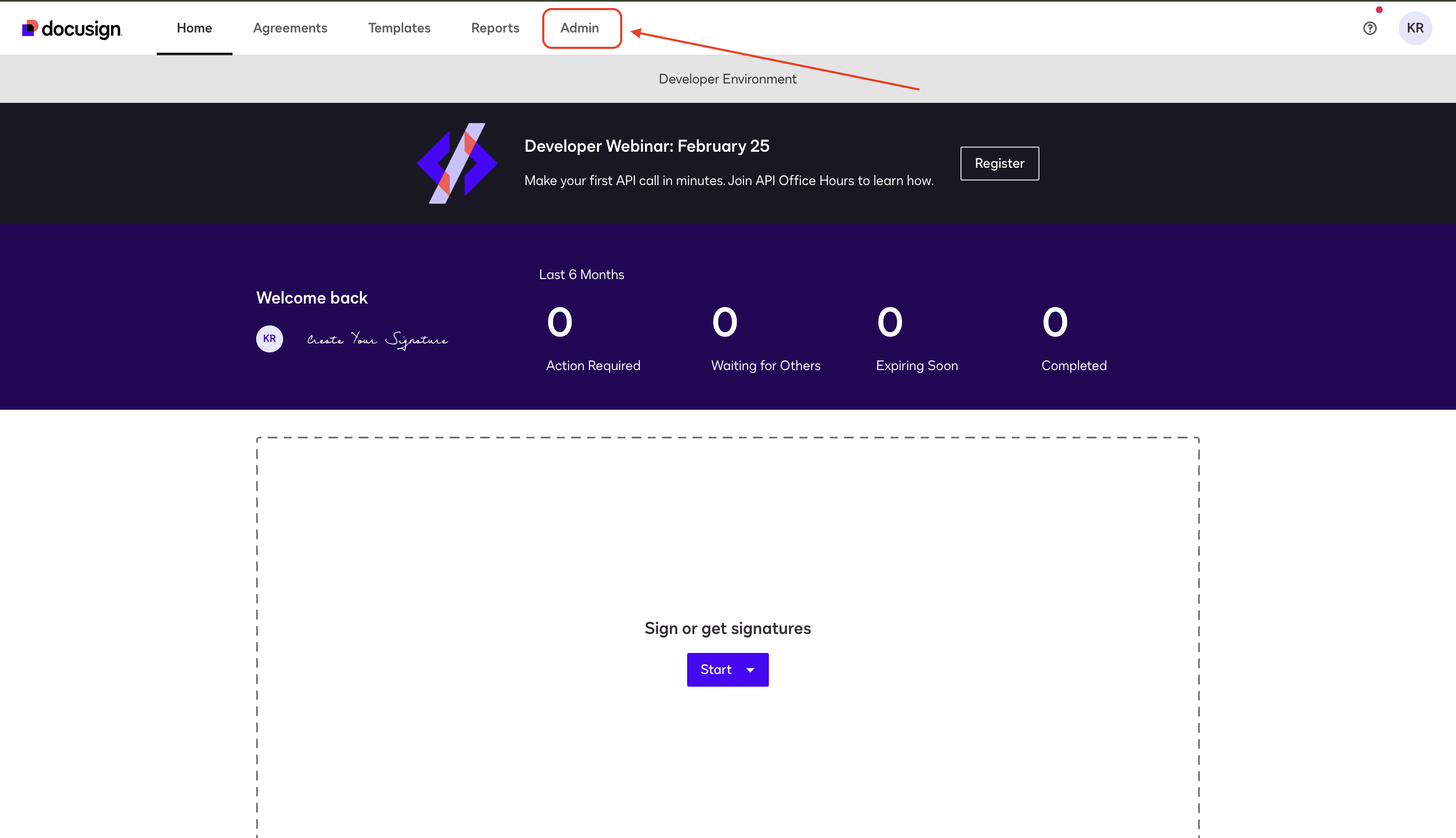
Click "Admin" in the top navigation bar.
-
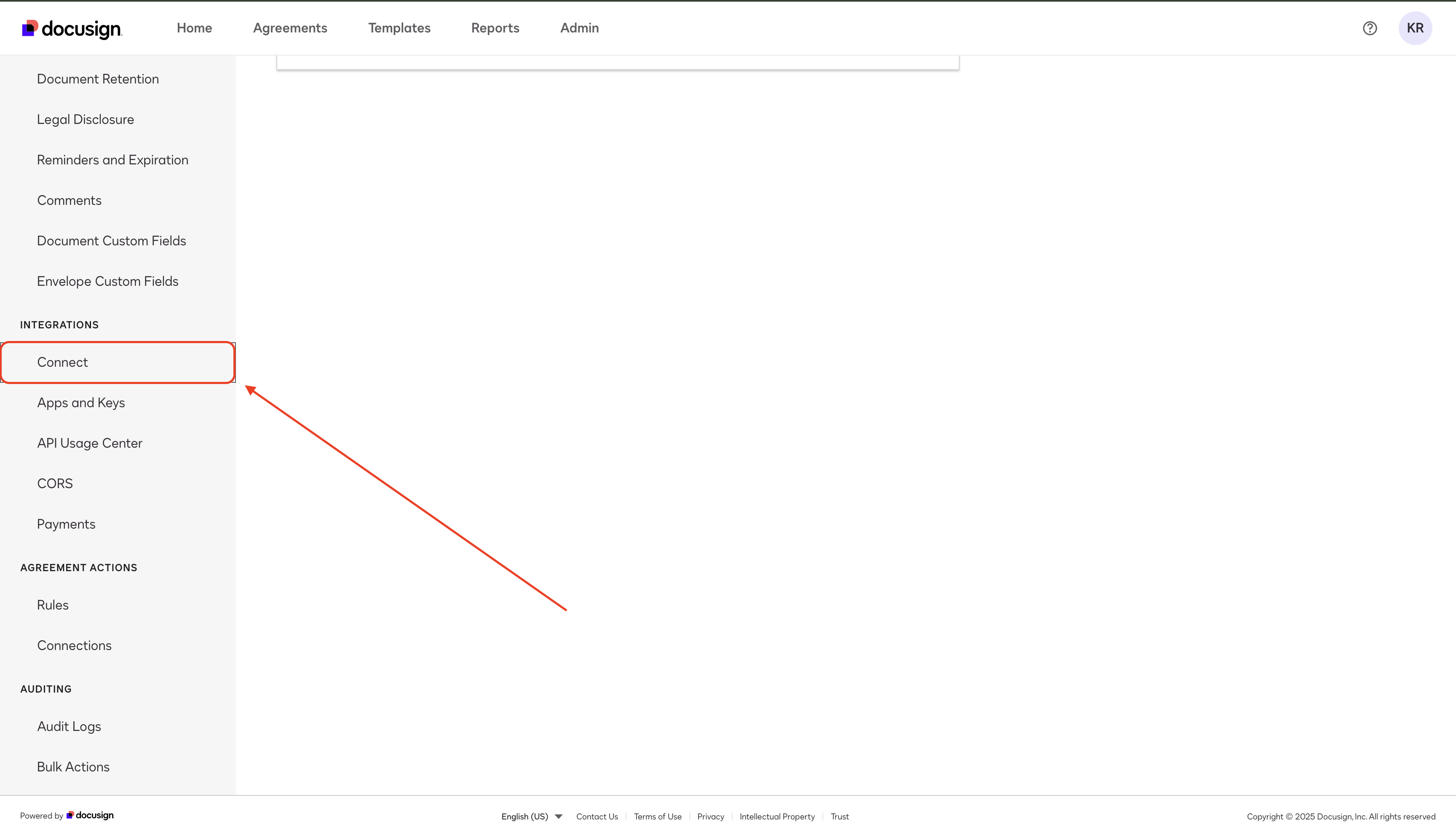
In the Left Sidebar, scroll to the bottom and locate the "Integrations Menu." Click "Connect."
-
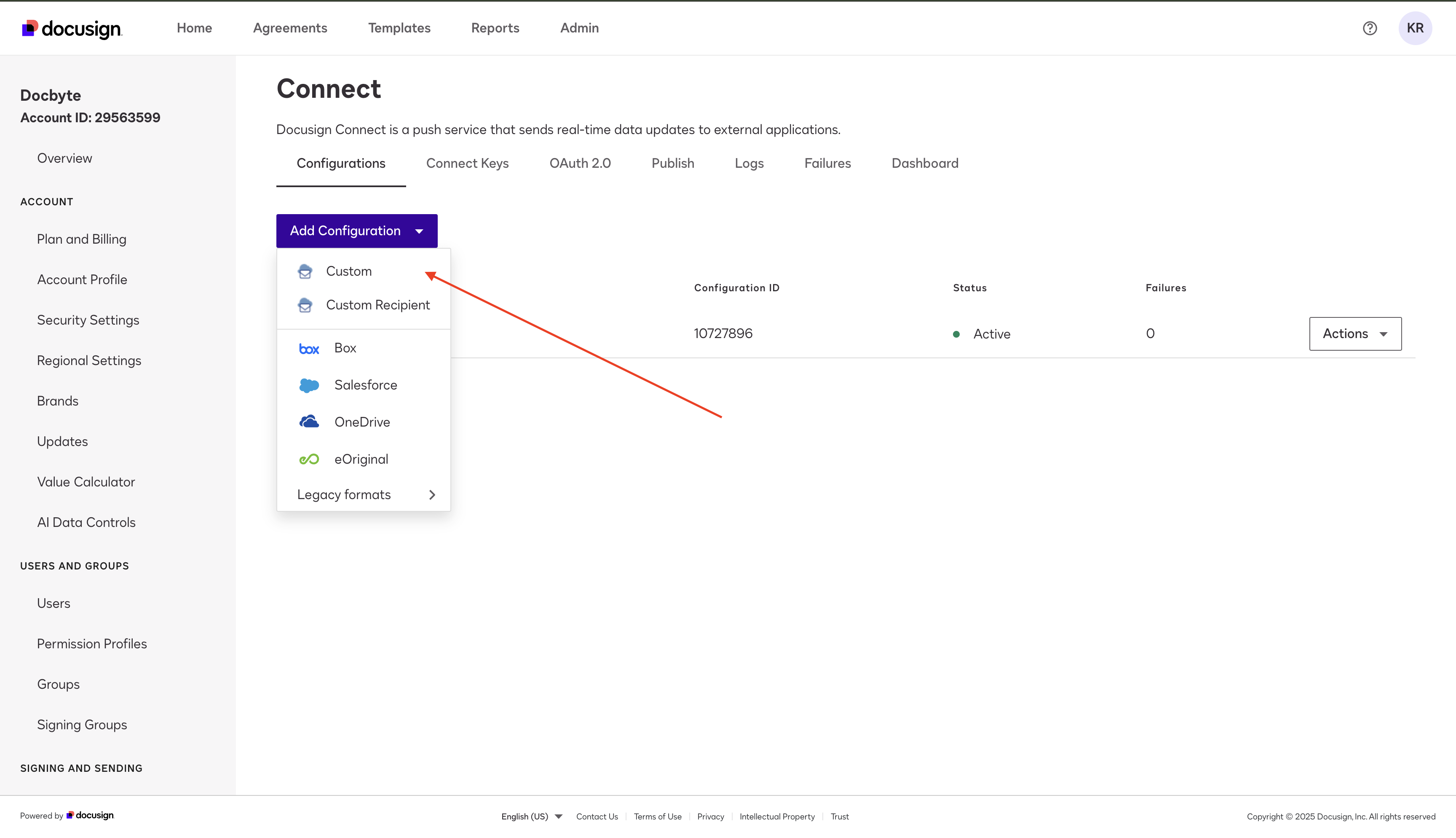
Click "Add Configuration", then select "Custom."
Listener Settings
-
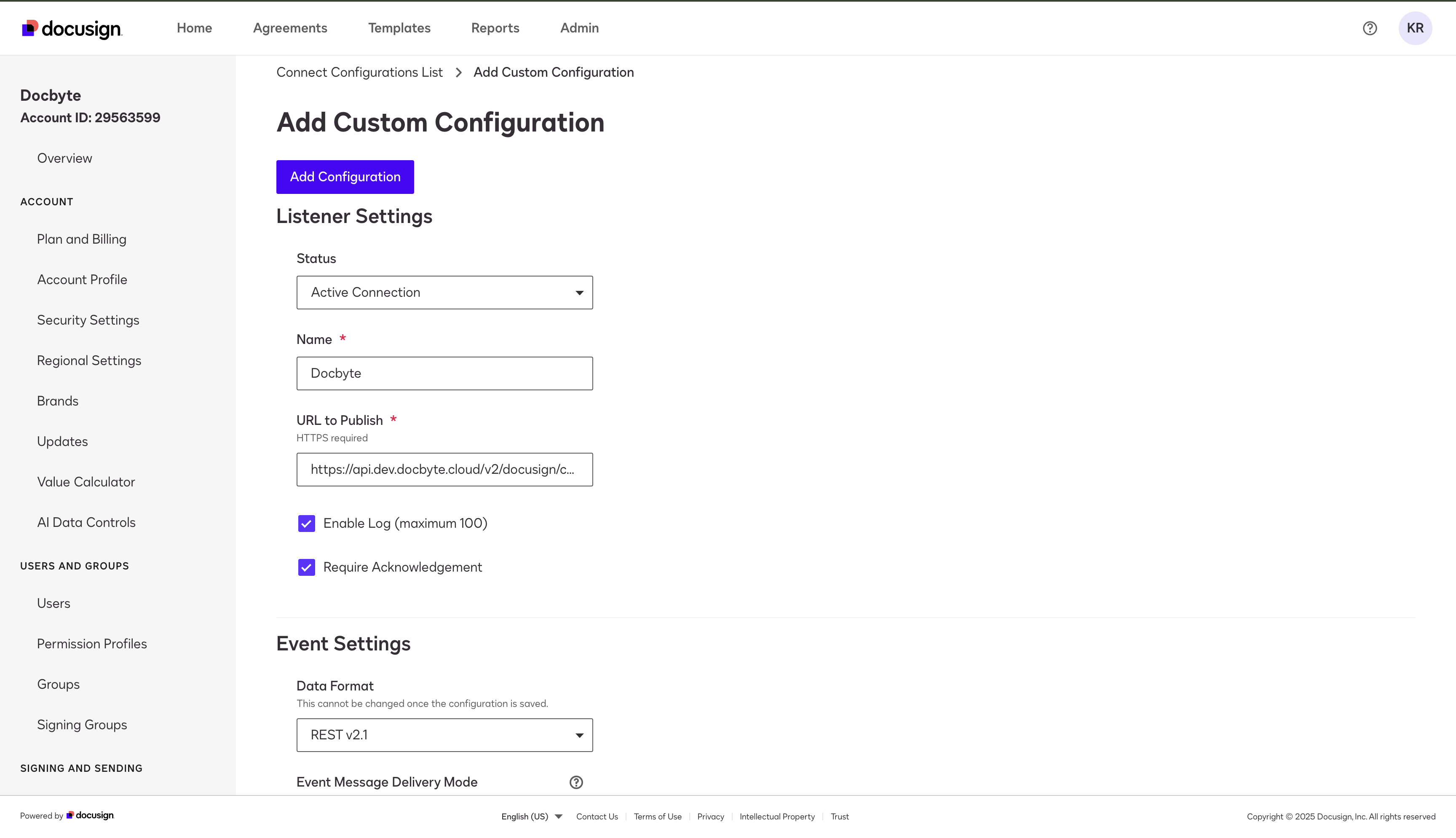
Set Status to "Active Connection."
-
Enter any value for Name.
-
The URL to Publish will be provided by Docbyte.
-
Check the boxes for "Enable Log" and "Require Acknowledgement."
Event Settings
-
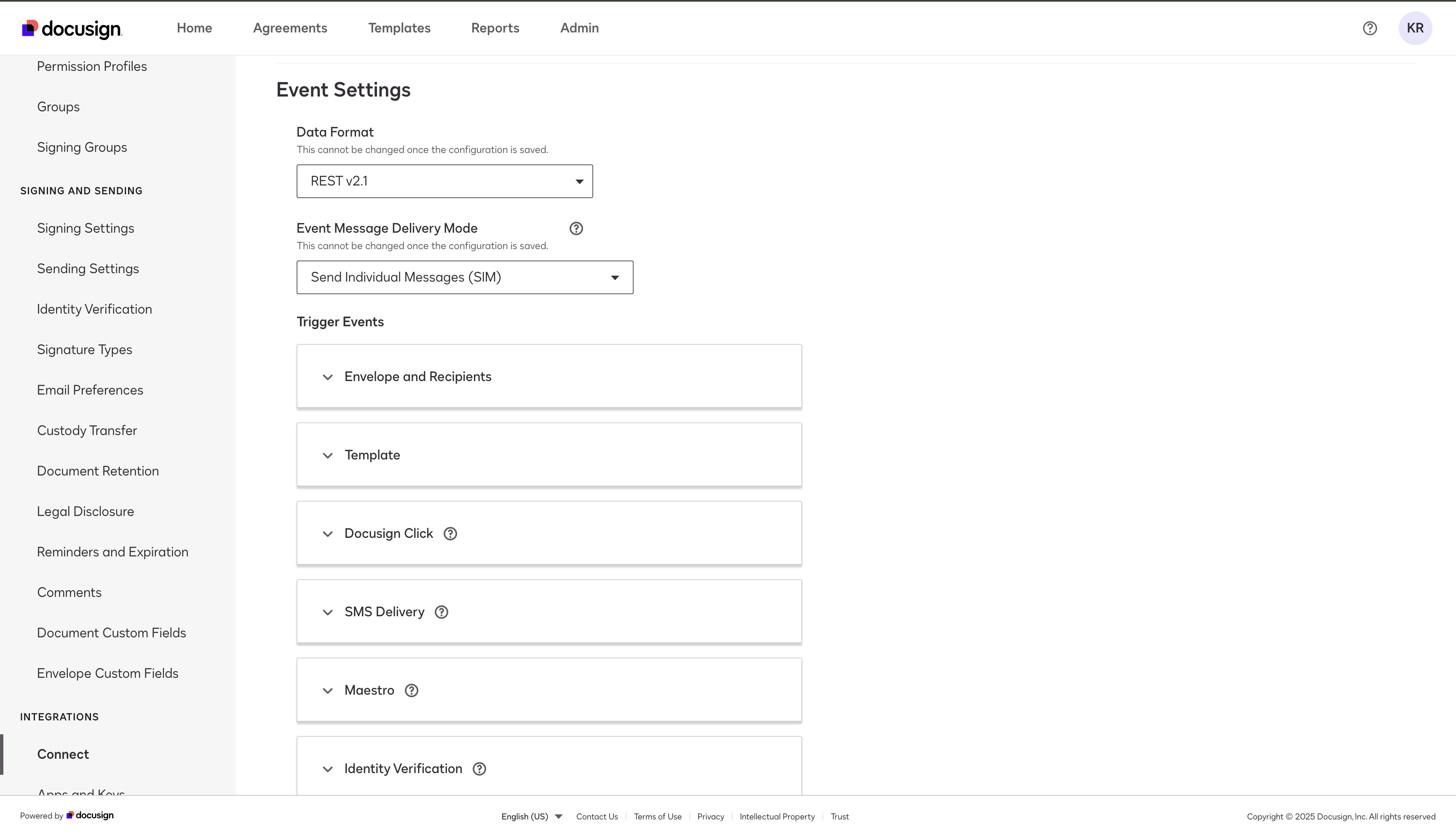
Keep Data Format set to REST v2.1.
-
Set Event Message Delivery Mode to "Send Individual Messages."
-
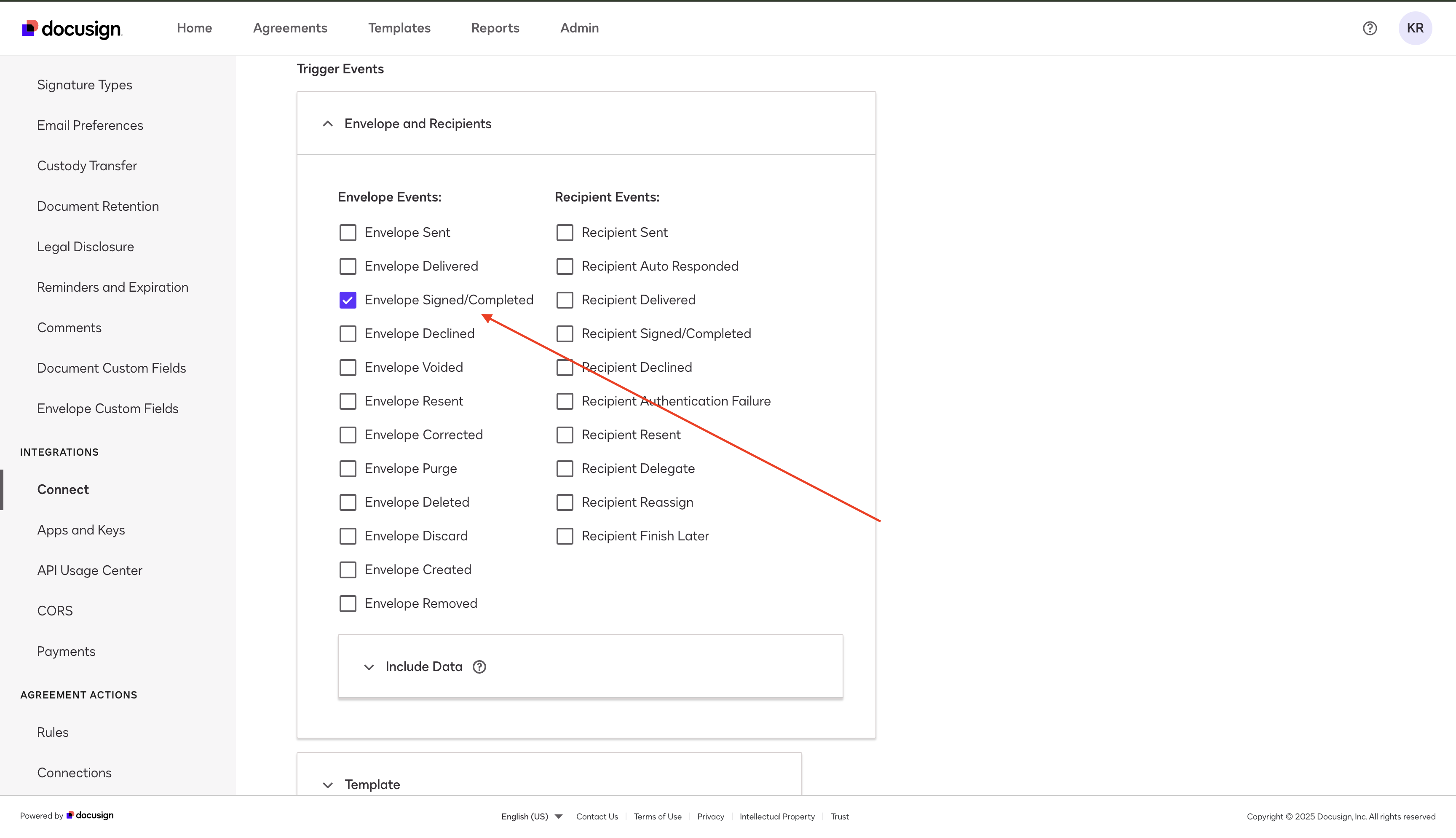
Under Trigger Events, select "Envelope Signed / Completed."
-
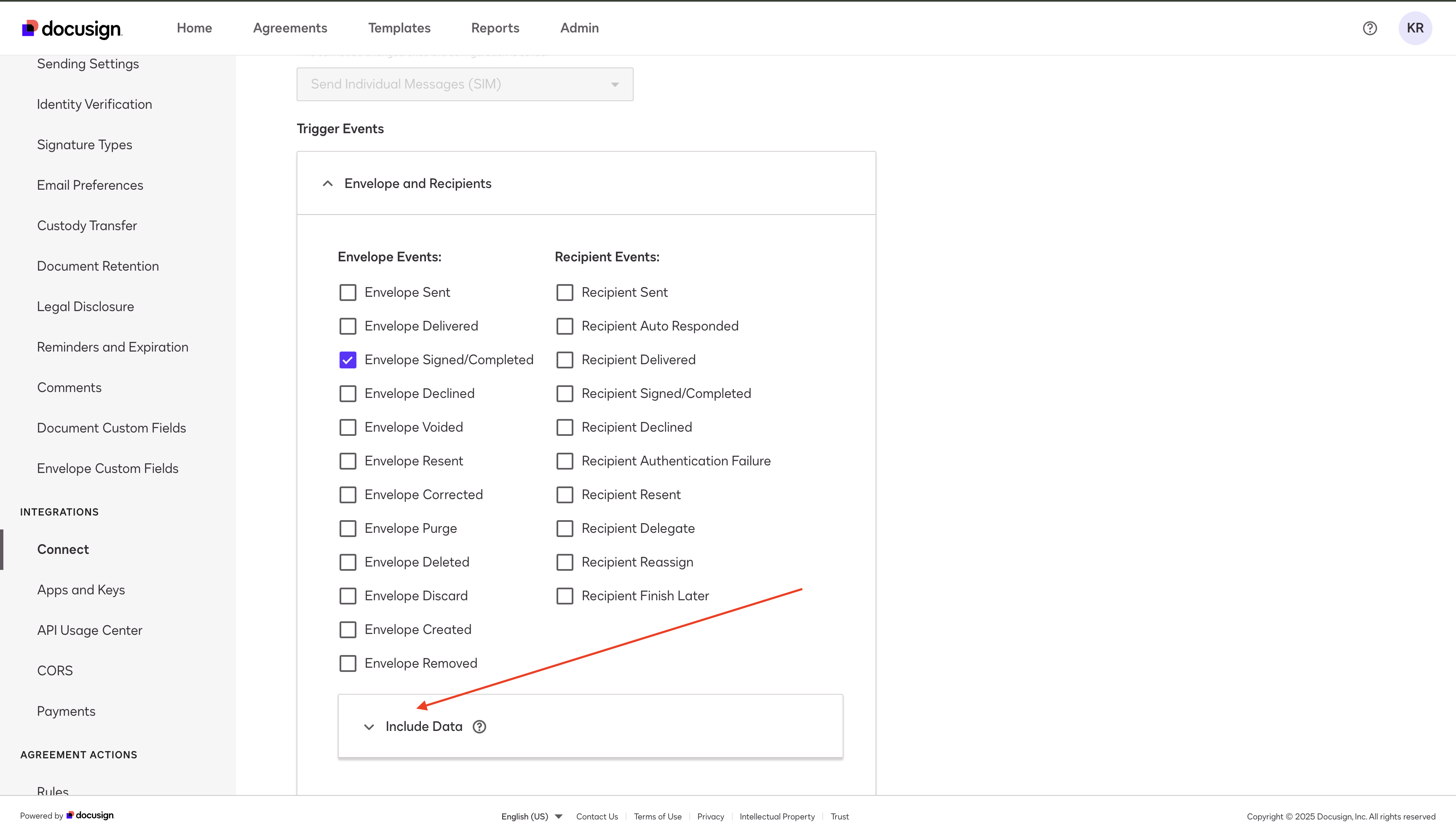
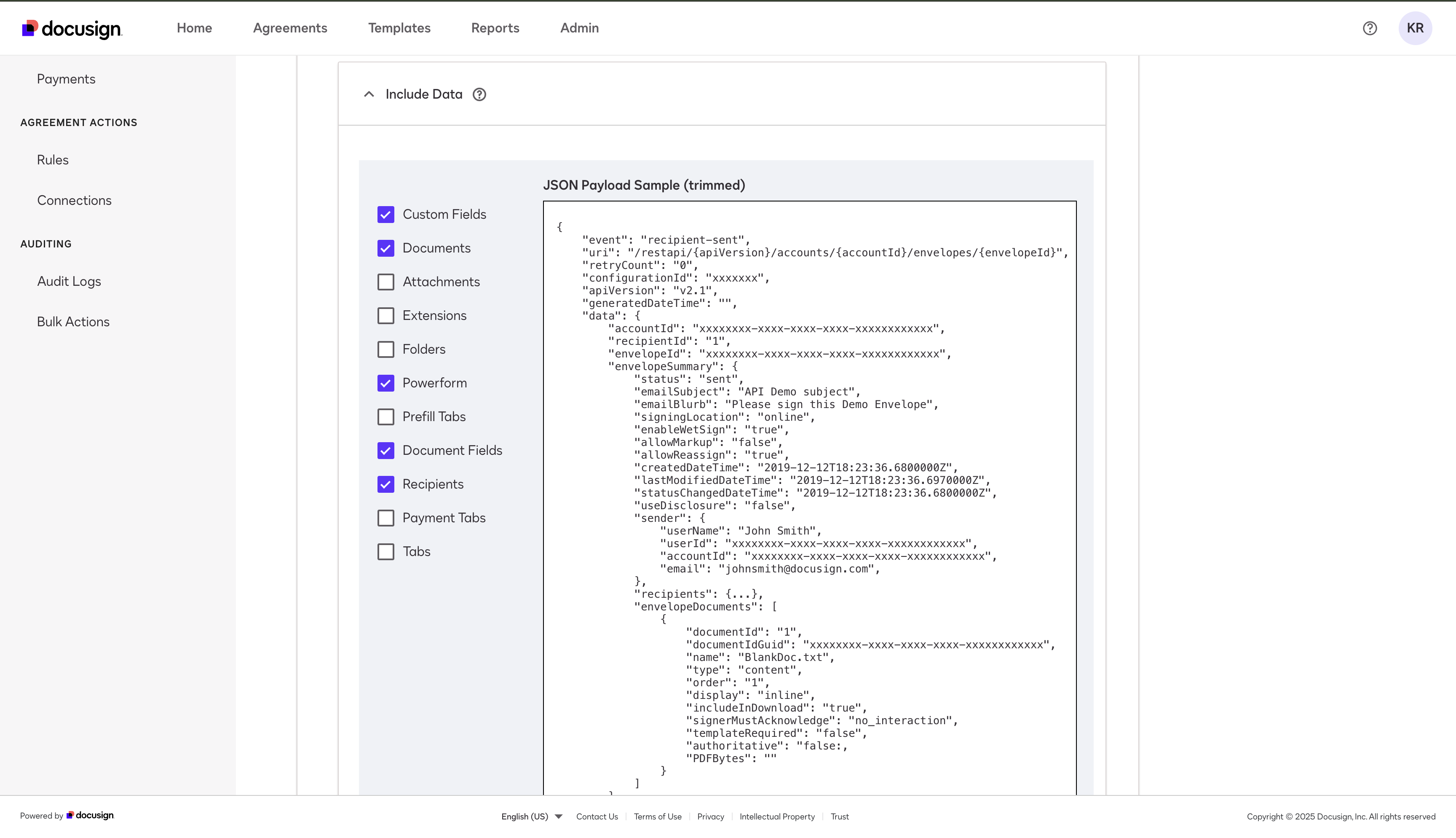
Scroll down to the "Include Data" tab, open it, and select:
-
Custom Fields
-
Documents
-
PowerForm
-
Document Fields
-
Recipients
-
-
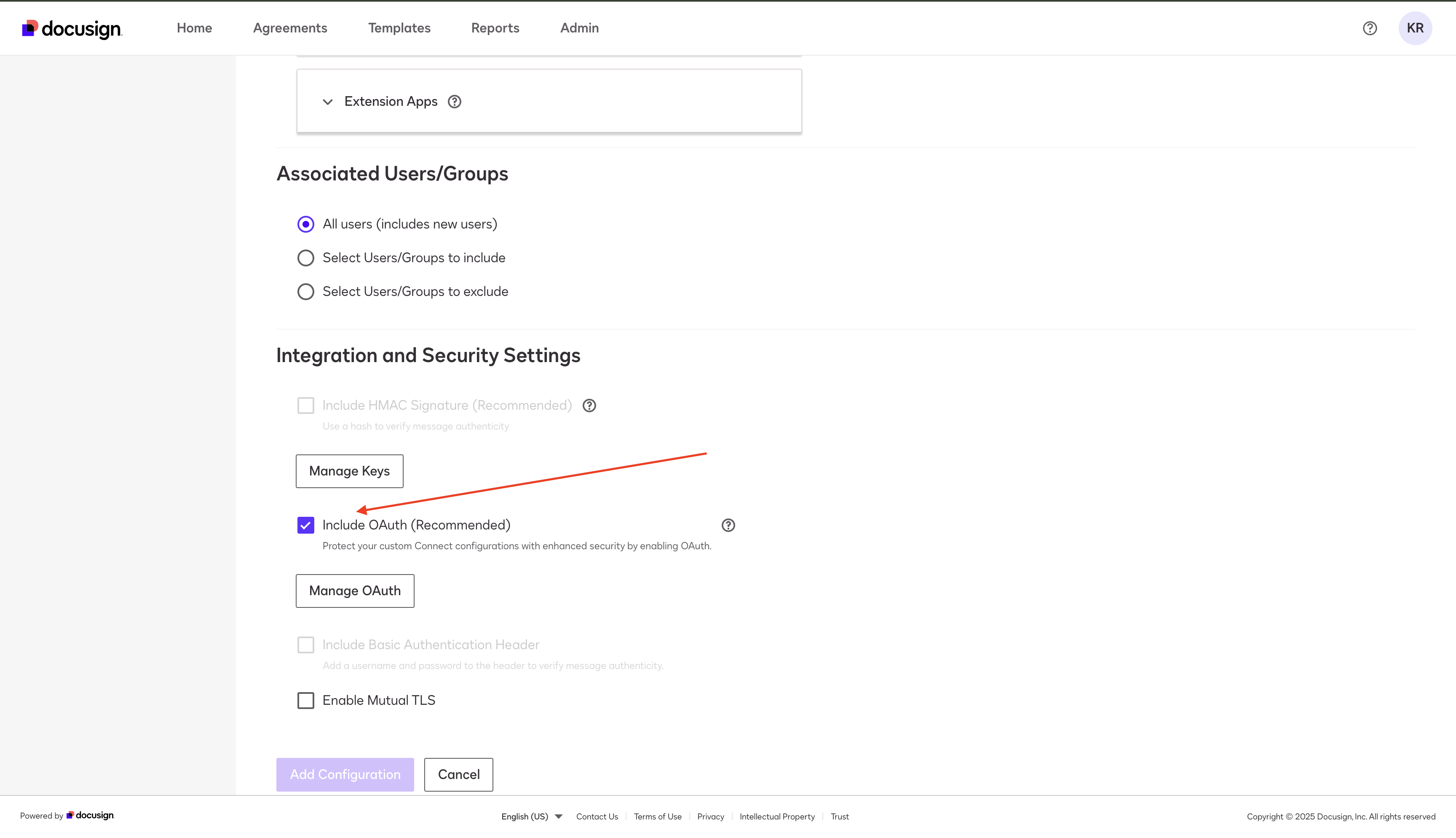
In Integration and Security Settings, check "Include OAuth."
-
Click "Add Configuration."
OAuth 2.0 Configuration
-
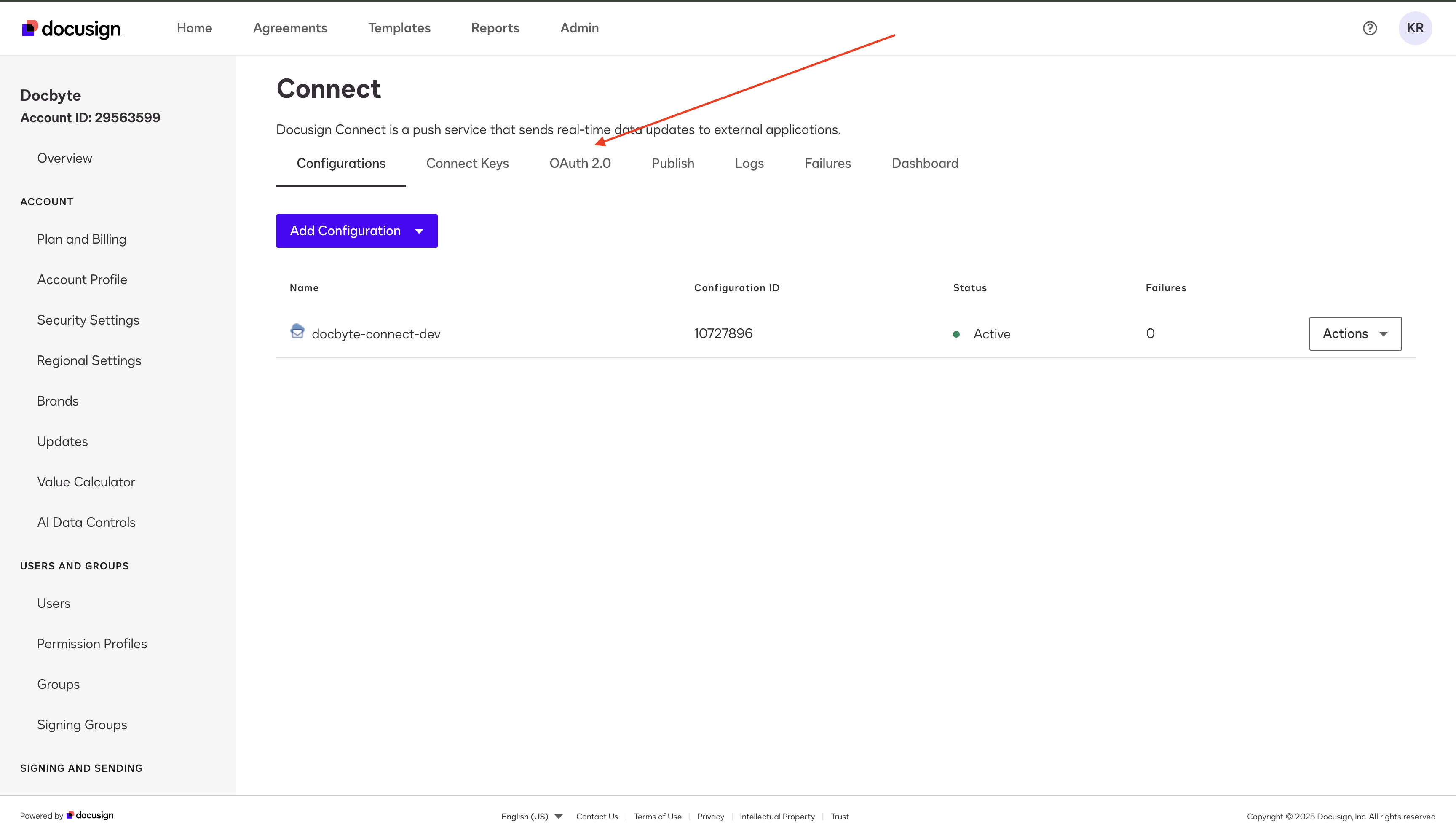
After adding the configuration, you'll be redirected to the Connect page.
-
Click "OAuth 2.0" in the navigation bar.
-
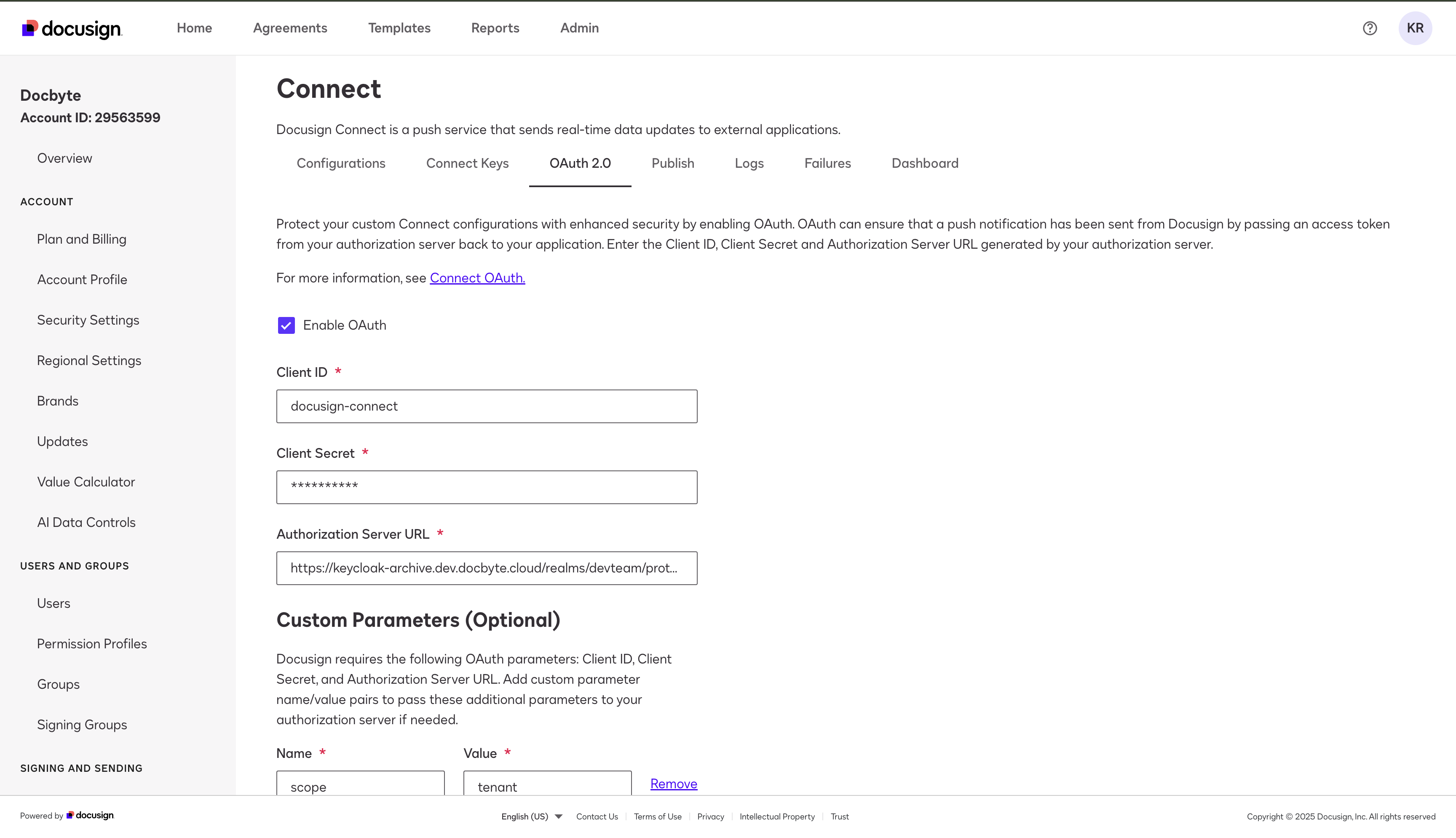
Enter the following values (provided by Docbyte): Client ID, Client Secret, Authorization Server URL
-
Click "Save."